
PC(Windows) Settings
For secure and convenient access to KoreaUniv AP, registration of the certificate is required upon the initial use, either automatically or manually
Please follow the setup guide below

Guide(KoreaUniv AP for Windows)
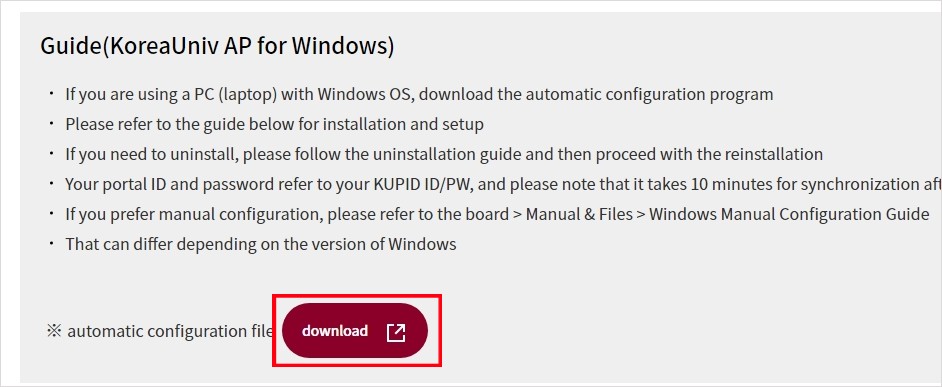
- If you are using a PC (laptop) with Windows OS, download the automatic configuration program
- Please refer to the guide below for installation and setup
- If you need to uninstall, please follow the uninstallation guide and then proceed with the reinstallation
- Your portal ID and password refer to your KUPID ID/PW, and please note that it takes 10 minutes for synchronization after you change your password on the portal
- If you prefer manual configuration, please refer to the board > Manual & Files > Windows Manual Configuration Guide
- That can differ depending on the version of Windows
※ automatic configuration file download
Settings
1. Wifi Homepage > KoreaUniv AP > PC(Window) Settings >download the automatic configuration file
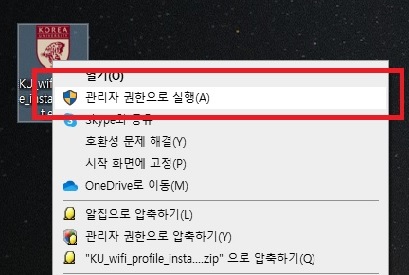
2. Unzipping file > Click on file > right-click > Click Run as administrator to proceed with the installation
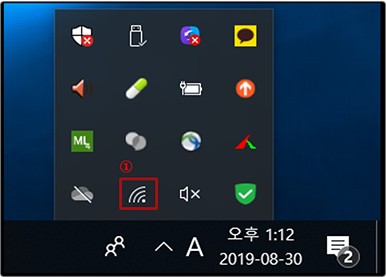
3. Click on the WLAN icon
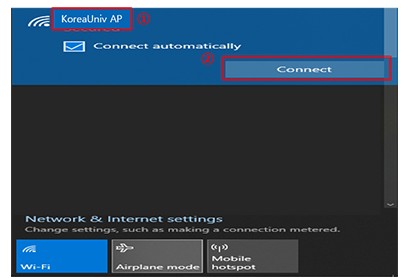
4. Click KoreaUniv AP > Click connect
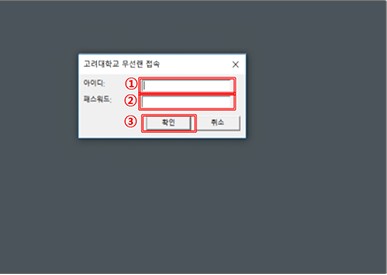
5. ID(KUPID ID@korea.ac.kr) > Password(KUPID PW) > Confirmation
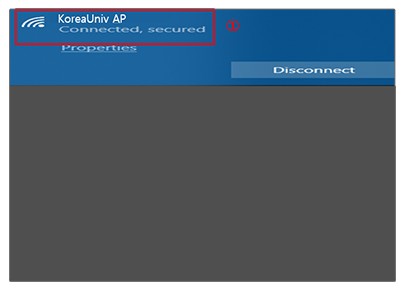
6. Check wireless LAN connection and use internet
Delete
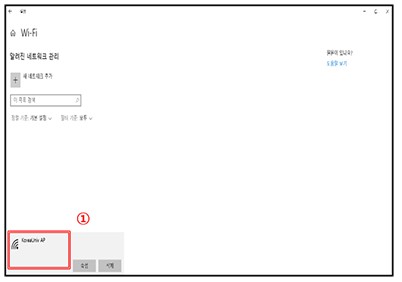
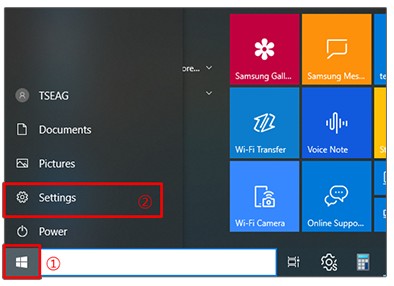
1. Click the lower left window icon > Click Settings
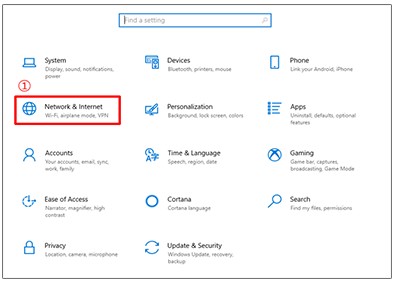
2. Click Network & Internet
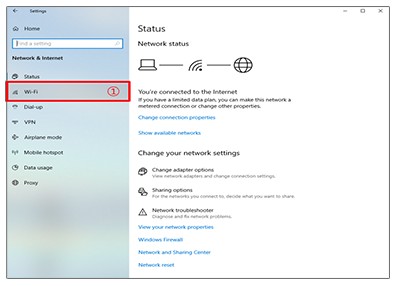
3. Click Wi-Fi
4. Click Manage known networks
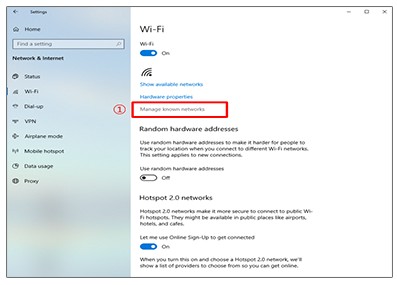
5. Click KoreaUniv AP and Click Forget